
Guide
How to Sell PDF Downloads on Shopify: A Step-by-Step Guide
Published November 2026 · By the developer of Granted Assets
PDFs are one of the simplest things to sell online. There's no inventory and no shipping, and the same file can sell a thousand times. Ebooks, planners, worksheets, sewing and knitting patterns, sheet music and printable wall art all work the same way. When a customer places an order, they need a reliable way to receive their files.
Shopify handles the selling part well. What it doesn't do on its own is hand the file to the customer. This guide walks through the whole setup, from preparing your files to testing a real purchase, and covers the details that tend to cause support emails later: download limits, expiry, refunds and customers who can't find their link.
Step 1: Prepare your digital files
Get the files right before you build anything in Shopify. Changing a file after customers have bought it is possible, but it's easier not to.
- Export final versions. For printables, export at print resolution and check the page size (US Letter, A4, or both). Many sellers include both sizes in a ZIP so customers in different countries can print without scaling.
- Watch the file size. Compress images inside your PDF where you can. Large files take longer to download on phones, and every delivery app has per-file and total storage limits.
- Use clear file names. The customer sees the file name when it lands in their downloads folder.
2026-weekly-planner-A4.pdfis more helpful thanfinal_v3_FINAL.pdf. - Check your rights. If you used templates, fonts or graphics from another source, make sure their licence allows resale.
Step 2: Create a Shopify product
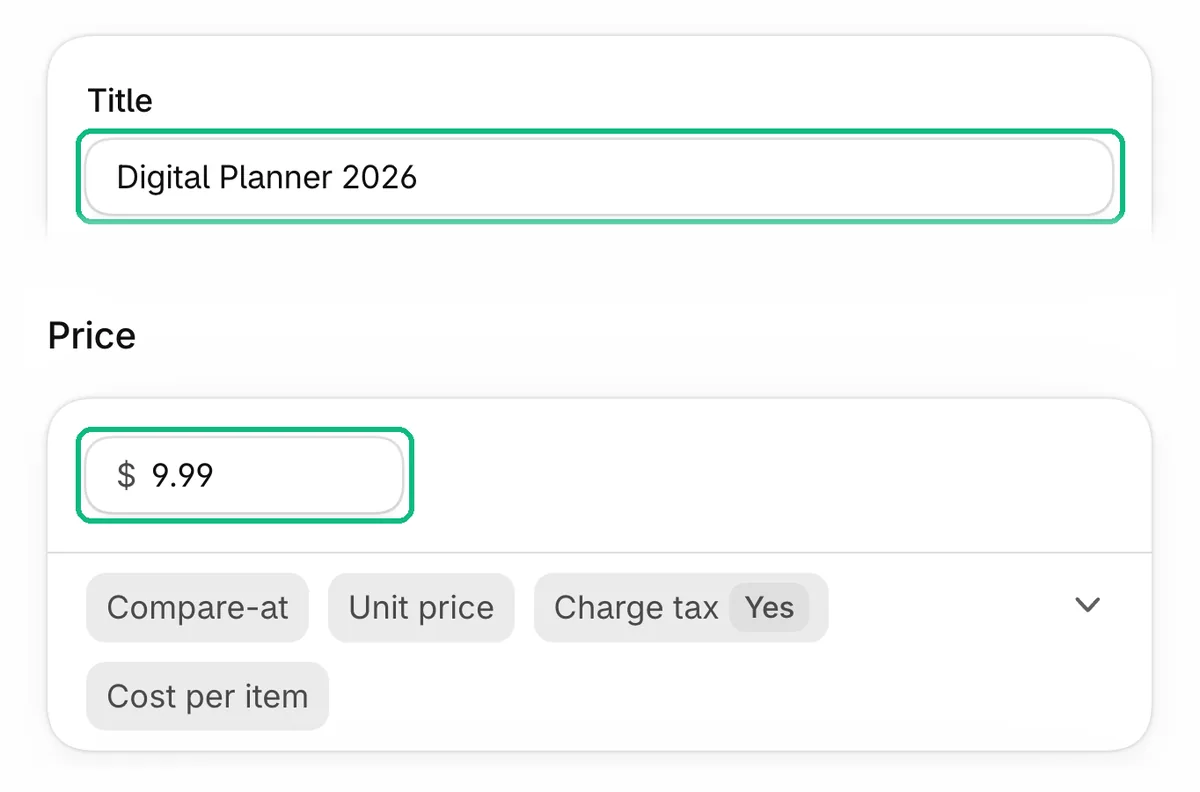
In your Shopify admin, go to Products and click Add product. Treat it like any other product page: a clear title, a description of exactly what the customer receives (number of pages, page sizes, file format), and a price.
 (opens full-size image)
For images, show what's inside: a few page previews or a mock-up of the printed result.
If you sell the same PDF in different formats or sizes, use variants. Most delivery apps can attach a different file to each variant.
Step 3: Turn off shipping for the product
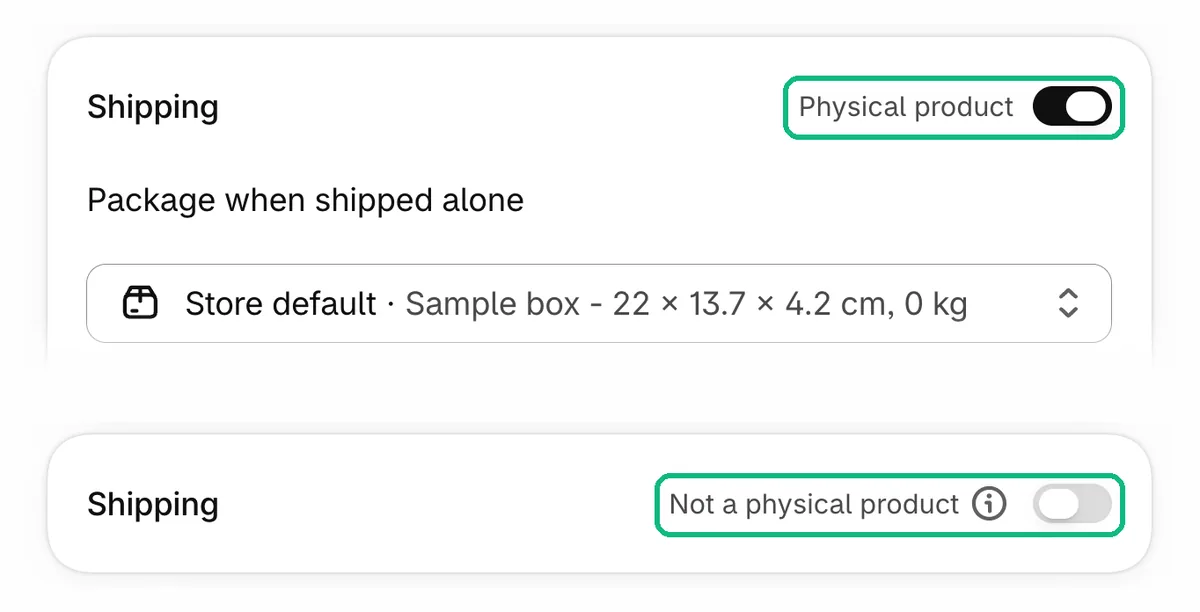
This is the step people most often miss. On the product page, find the Shipping section and turn off Physical product, then save. If you have variants, check each one. Shopify's bulk editor can also switch off Requires shipping for many products at once.
 (opens full-size image)
With shipping turned off, the product doesn't need a shipping rate and won't be treated as something to pack and post. Leave it on and you can end up with digital orders sitting in your unfulfilled queue, or a customer being charged shipping for a PDF.
See Shopify's guide to selling services or digital products for the current admin steps.
Step 4: Choose how files are delivered
Shopify doesn't deliver files by itself, so you'll need a digital downloads app. When comparing them, look at:
- Download email. Is the email sent automatically after purchase, and can you change its wording and branding?
- Thank You and Order Status pages. Can the download link also appear on the page the customer sees right after checkout? This helps customers who don't see the email straight away.
- File size and storage limits. Check both the largest single file you can upload and the total storage on the plan you'd use.
- Access controls. Expiry dates, download-count limits, and the ability to revoke, restore or resend access.
- Refund handling. Does access end automatically when you refund or cancel an order?
Shopify's Digital Products app is free and covers the basics: it emails a link after purchase, can show a download link on the Thank You and Order Status pages, and lets you limit downloads per customer (access is unlimited by default).
Granted Assets is our app. It sends its own download email as soon as an order is created, and it revokes access automatically when an order is cancelled or the item that granted a file is fully refunded. What each plan includes:
- Free: automatic download emails, secure download links with expiry and download limits, 1 GB of total storage and files up to 100 MB. No caps on orders or bandwidth.
- Starter: more storage (10 GB, files up to 500 MB), download links on the Thank You and Order Status pages, email customization and automatic fulfillment of digital-only orders.
- Growth: PDF watermarking, resending emails and extending access, download analytics and full branding control, with 50 GB of storage and files up to 2 GB.
- Scale: 200 GB of storage, files up to 5 GB and priority support.
See pricing for current prices.
Step 5: Attach files and set download access
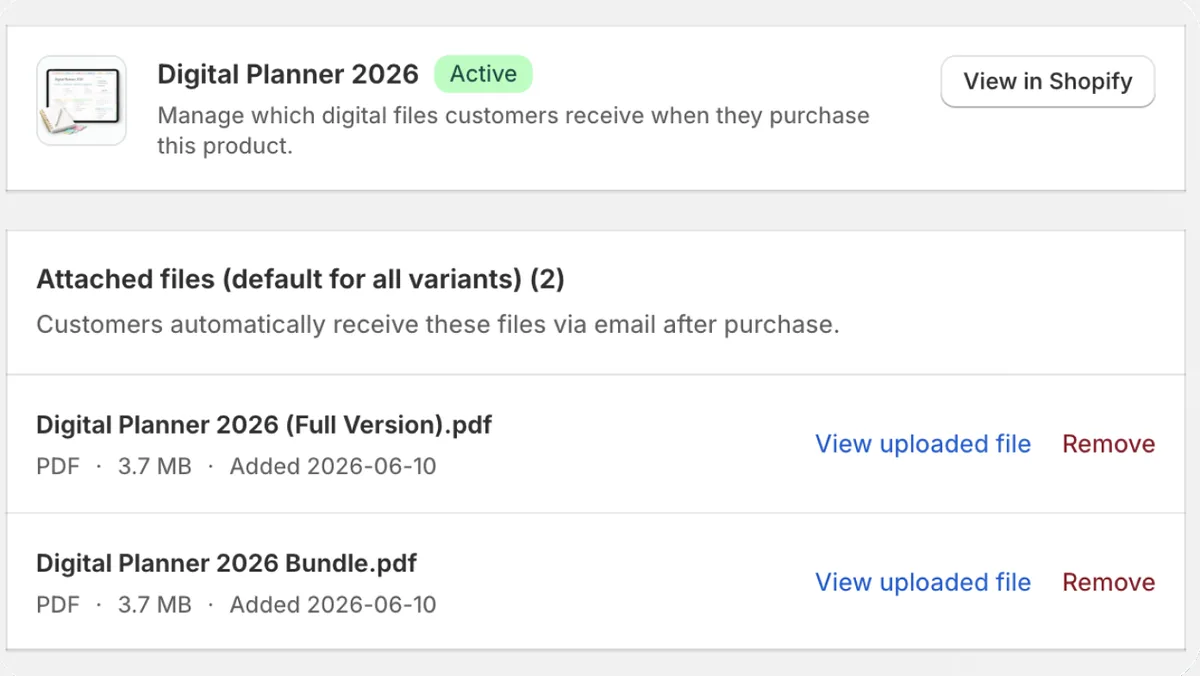
Once your app is installed, upload your file and attach it to the product (or to a specific variant). From then on, every order for that product triggers delivery.
 (opens full-size image)
Download expiry and limits
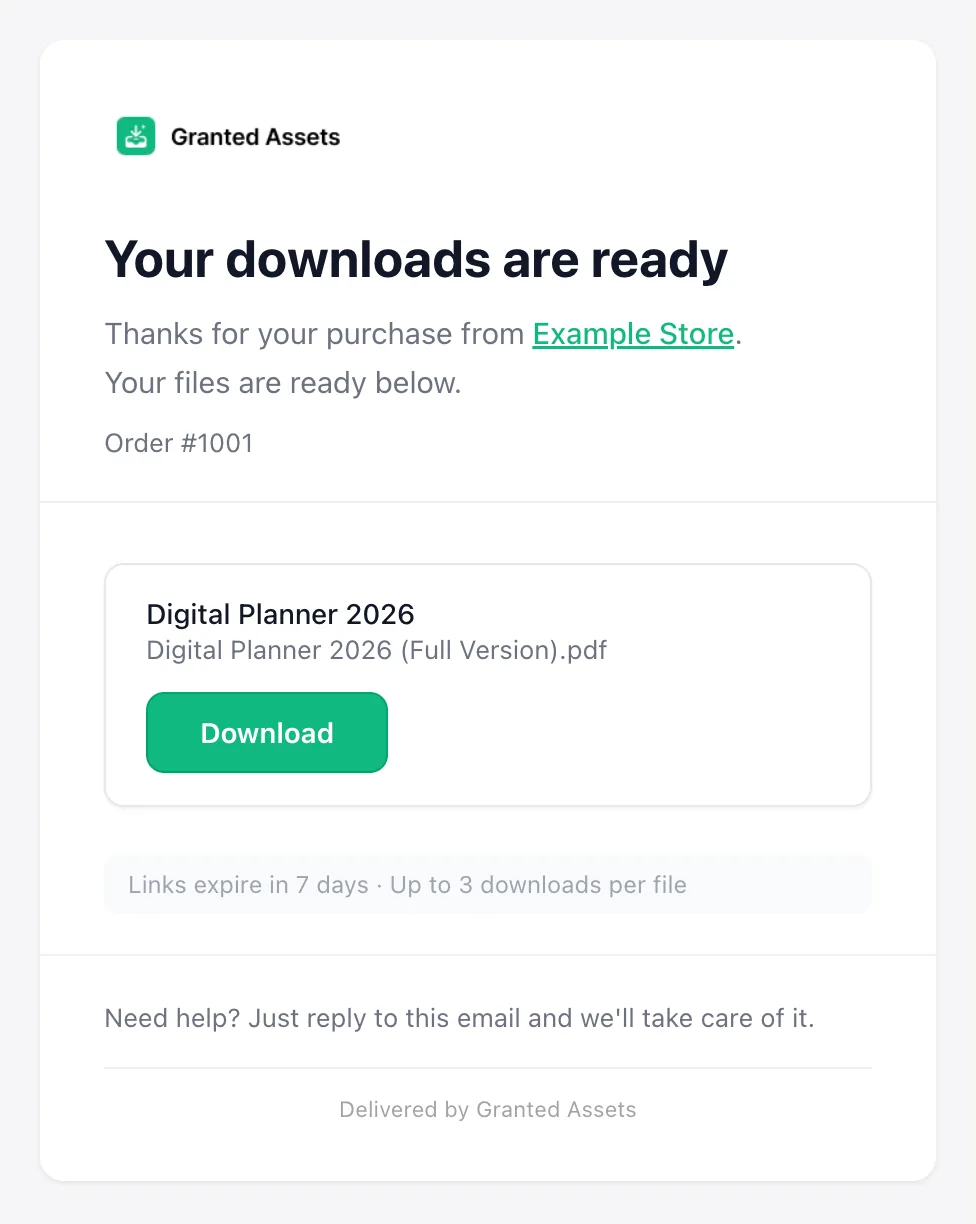
Most apps let you control how long a link works and how many times it can be used. In Granted Assets, links expire after 7 days and allow 3 downloads by default, and you can change both for future orders. Tighter limits make shared links less useful; looser limits mean fewer “my link stopped working” emails. Pick a starting point and adjust once you have real orders.
The download email
The download email is often a separate message from Shopify's order confirmation. Write it so the customer knows exactly what to do: what they bought, a clear download button, how long the link lasts, and who to contact if something goes wrong. Setting a reply-to address on your own domain means replies reach you.
 (opens full-size image)
Marking digital orders as fulfilled
Delivering a file and fulfilling the order in Shopify are separate things. If you only sell digital products, Shopify's order processing settings (Settings → General → Order processing) include Automatically fulfill the order's line items. Don't turn it on if you also ship physical products, because it applies to every new order. Some delivery apps can fulfill digital-only orders for you instead.
PDF watermarking
Some apps can stamp each PDF with the buyer's email, order number or date as it's downloaded. It's a reasonable deterrent for higher-value files like patterns, but it adds text to the page, so check how it looks on your layout first.
Step 6: Test the purchase and download
Don't launch without buying your own product first. Shopify lets you place test orders using its test payment gateway or Shopify Payments test mode, so no real money changes hands. Remember to turn test mode off afterwards; real customers can't pay while it's on.
Use a real inbox you can check, and walk through it as a customer:
- Add the product to your cart and check out.
- Confirm checkout doesn't ask for a shipping address or charge shipping (if it does, revisit Step 3).
- Check the Thank You page if you've set up delivery there.
- Open the download email. Check the sender name, subject line and whether it landed in spam or a promotions tab.
- Download the file on a phone as well as a computer, and open it.
- Download it again until you hit your limit, so you know what a customer sees when access runs out.
- Refund or cancel the test order and confirm what happens to the link.
Step 7: Launch and avoid common mistakes
When the test order works end to end, publish the product. Then watch for these common problems:
- “I never got my file.” Usually the email is in spam, or the customer mistyped their address. Say in your product description and order confirmation that the download arrives by email, and check the order to see which address was used.
- Shipping left on. One variant still marked as a physical product is enough to cause shipping charges or stuck orders.
- Limits that are too strict. If customers regularly run out of downloads, loosen the defaults. Being able to resend or extend access saves a lot of back-and-forth.
- Unclear refund policy. Customers keep files they have already downloaded. State your policy for digital products on your refund policy page and in the product description.
- Mixed carts. If you also sell physical products, test an order with both kinds of item, so you know how fulfilment and delivery work together.
- Manual payment methods. Apps differ on when they deliver. Shopify's Digital Products app sends files after payment; Granted Assets sends them when the order is created. If you accept bank transfer or cash on delivery, check what your app does before a customer can receive a file you haven't been paid for.
Frequently asked questions
Can I sell PDFs on Shopify without an app?
Not with automatic delivery. Shopify lets you create a product with no shipping, but it doesn't attach a file to the order or email it to the customer. You need a digital downloads app for that. Shopify's own Digital Products app is free, and there are third-party apps with more delivery and access controls.
Do customers need an account to download their files?
Usually not. Most delivery apps email a download link to the address used at checkout, so guest checkout works. Order Status page delivery is a convenience on top of the email, not a replacement for it.
What happens to download access if I refund an order?
It depends on the app. Some revoke links automatically when an order is refunded or cancelled, and others need you to deactivate the link yourself. Either way, a file the customer already downloaded stays on their device, so decide on your refund policy before you launch.
Does watermarking stop people sharing my PDFs?
No. Stamping each copy with the buyer's email or order number makes casual sharing less attractive and lets you trace a leaked copy, but it can't prevent copying. Treat it as a deterrent, not protection.
Do I need to charge tax on digital products?
Possibly, and the rules differ from physical goods. For example, Shopify notes that EU customers pay VAT at their own country's rate on digital goods. Review Shopify's guidance on digital product taxes and check with a tax adviser for your situation. Don't switch off tax collection on a product just because it's digital.
Try Granted Assets
Upload a PDF, attach it to a product and send yourself a test order. The Free plan includes automatic download emails and secure links.
View on the Shopify App Store